Skip to updates
Maquete

What’s new

The latest improvements to Maquete, with practical ways to try them.

Improved

Optional 1080p video

Choose 720p or 1080p for Standard and Max.

  • Choose the resolution with the orange pill toggle; 720p is the default.
  • At 1080p, Standard costs 14/28 credits for 5/10 seconds; Max costs 22/44. Fast stays at 720p. Max requires Studio or Business.
Improved

Fast, Standard and Max video

Choose a video tier, with credits shown before generation.

  • Fast at 720p: 5 credits for 5 seconds or 10 for 10 seconds.
  • Standard costs 6/12 credits for 5/10 seconds at 720p, or 14/28 at 1080p. Max at 720p costs 9/18 on Studio and Business.
  • Motion Fast clips cost 4 credits for 4 seconds or 5 for 5 seconds. AI detail preparation is charged separately. Standard remains the default.
Improved

More presentation typography options

Use familiar pill controls, paragraph-style previews and expanded text formatting.

  • Choose from 13 paragraph styles and the genuine weights available for each bundled font, including Medium and Semibold where supported.
  • Adjust character spacing, capitalization, text background, outline and shadow. Your settings carry through to shared slides and PDF exports.
Improved

Clearer presentation controls

Format slides with a clearer inspector and live previews.

  • Adjust text, appearance and arrangement in separate tabs. Font size and opacity update immediately.
  • Choose from 24 bundled fonts, use text presets, and adjust italic, underline, strikethrough and line spacing.
  • Rotate lines precisely and adjust size, position, alignment and layers without leaving the inspector.
New

Studio financial planner

Plan your studio costs, billable capacity and hourly cost. Use this foundation to calculate fees when needed.

  • Start with the costs and working capacity of your studio. No project is required.
  • Use the studio costs above to estimate a job. Its name and client are optional.
  • Each plan is a separate set of studio assumptions. Duplicate a plan to compare a change without editing the original. Only you can see these figures. They are never included in the client link.
New

Briefings for exterior projects

Prepare questions about the site, architecture and outdoor spaces. Add interiors to the same briefing and reuse shared answers.

  • Create an exterior briefing covering the site, architecture, landscaping and budget.
  • Add images to individual questions and include interiors in the same briefing without repeating shared answers.
Improved

A clearer presentation editor

Build and present your project in a more spacious workspace.

  • Navigate labelled slide thumbnails, format selected objects in a side panel, and choose layouts from a larger template gallery.
  • Preview slides privately with arrow-key navigation. Sharing and PDF export stay within reach.
Improved

A clearer project workspace

Open each project with its cover, progress and upcoming dates.

  • Use the familiar collapsible sidebar, with the project title on the cover image. Choose and reorder project steps on first opening, then explicitly mark completed steps. Notes, briefings and presentations sit together; tables and individual reviews open on their own pages.
  • Add your studio logo and share a client dashboard with read-only briefings, presentations and cost schedules. Both of you can leave notes; working images, panoramas and tour tools stay private.
  • Choose which images the client can download. Both of you can download a ZIP folder of full-resolution PNGs with your studio logo in the bottom-right corner; originals remain unchanged.
Improved

Plan to View returns

Choose a room and viewpoint from your floor plan, review the 3D preview, then generate an interior image.

  • The preview includes ceilings and covers over identified enclosed rooms, while outdoor spaces stay open.
  • Describe what you want to change, apply the AI proposal to the preview, then generate again. Your room, viewpoint and approved corrections are kept.
Improved

Motion Studio: more varied films

Create films that combine room views, close-up details and gentle movement.

  • A more varied mix of camera movements, detail shots and natural motion.
  • Selected images of the same room help keep shots consistent.
  • Paid Pro accounts can try one film using their existing credits; free trials are excluded. Studio and Business include continued access.
Improved

Adjust: three labelled references

Name what each image is for, e.g. chairs, handles or wallpaper. The current render stays the scene reference.

  • Three references added. Remove one to choose another.
  • Give each reference a different label.
New

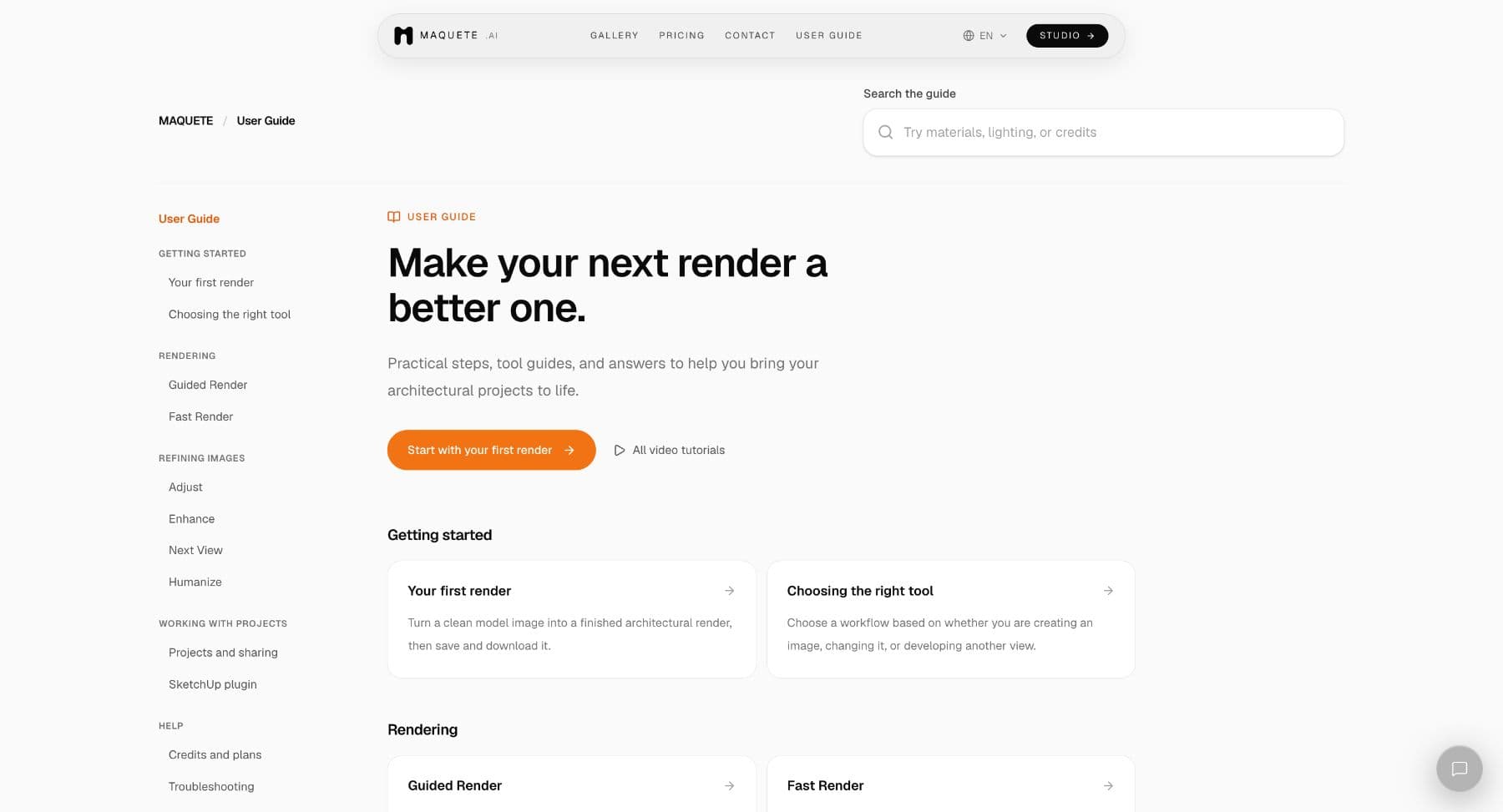
Introducing the User Guide

Find the right tool, finish your first render, and get help when something goes wrong.

  • Follow step-by-step workflows for rendering, refining images, projects, and the SketchUp plugin.
  • Search the guide in your language, or jump to a video tutorial.
  • Use troubleshooting tips to decide what to try next.
English User Guide home with search, a Start here link, and grouped articles.
The User Guide brings workflows and help together in one place.
Improved

Check the scene type before you render

SketchUp plugin 1.0.71 asks you to confirm when the detected scene type differs from your Interior or Exterior selection.

  • Use the detected type, keep your selection, or cancel before the render starts.
  • If the detected type matches your selection, rendering continues automatically.
Improved

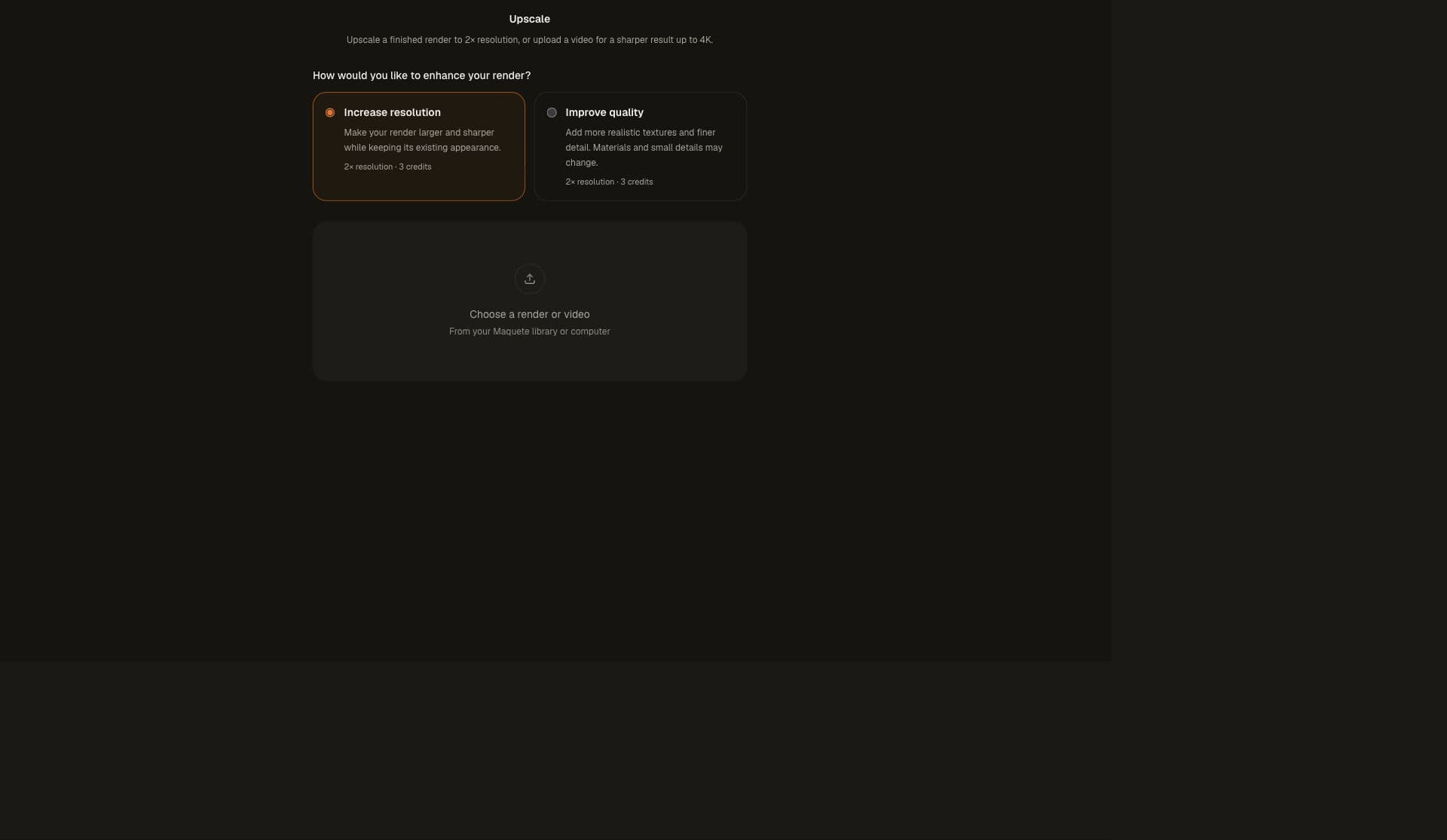
Clearer choices for enhancing images

Choose Increase resolution or Improve quality before uploading your image.

  • Use Increase resolution when you want a larger output.
  • Use Improve quality when you want the image’s detail to be reconstructed; check the result for changes to design details.
English Enhance interface with Increase resolution and Improve quality choices above the upload area.
Choose your enhancement goal before uploading.
Get in touch

Send us a message and we'll get back to you