AI Rendering for Vectorworks
Photorealistic renders from Vectorworks
in seconds
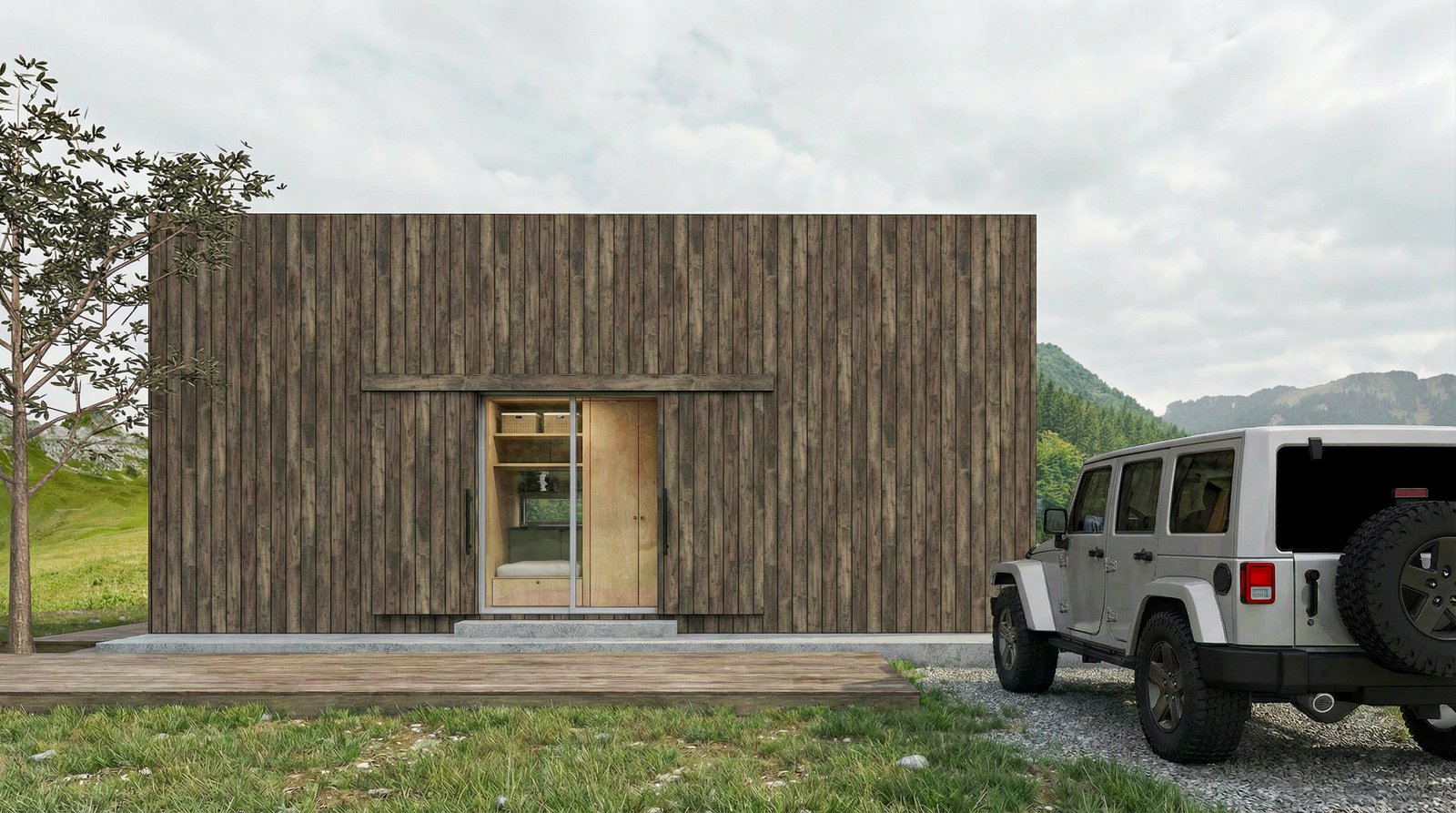
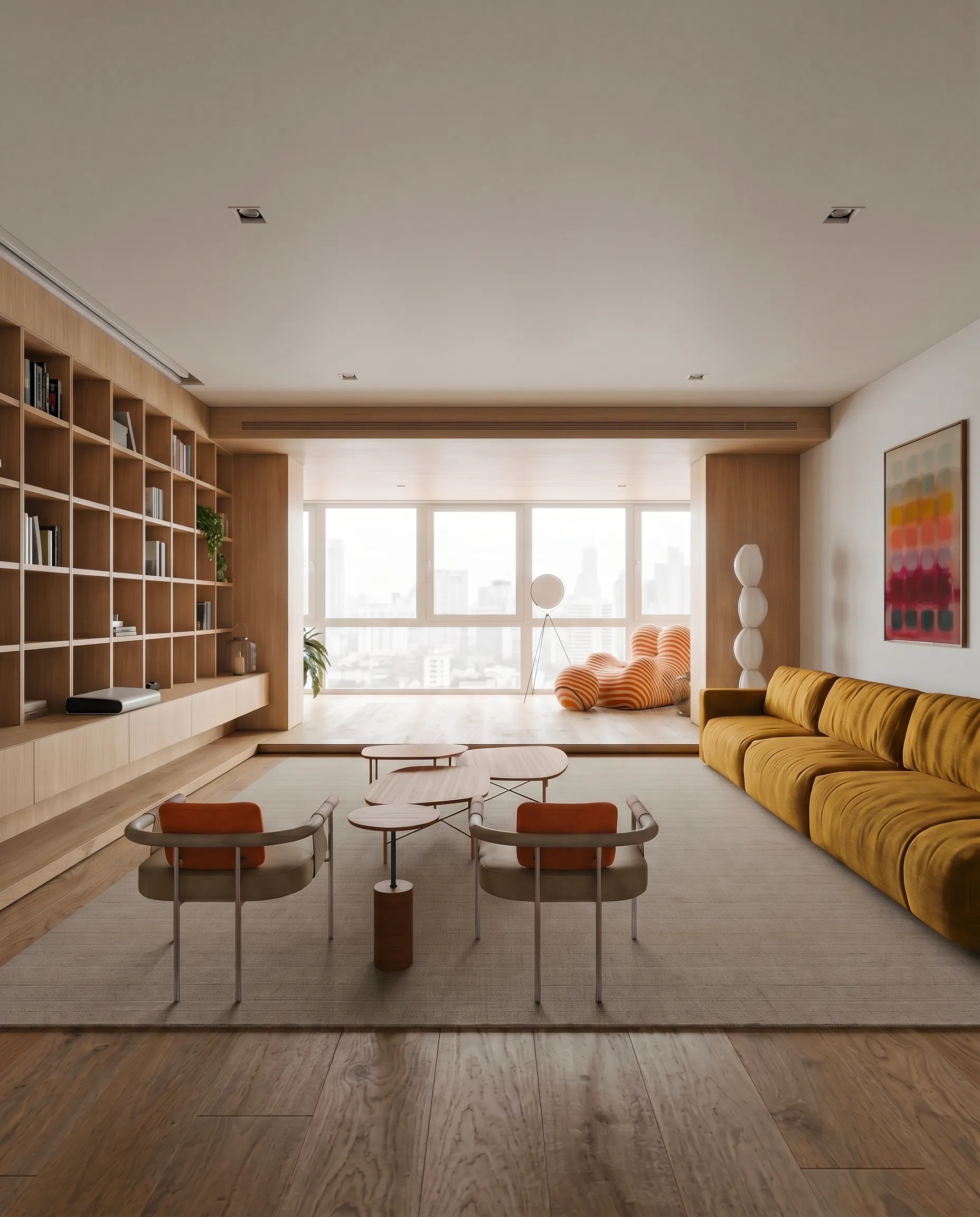
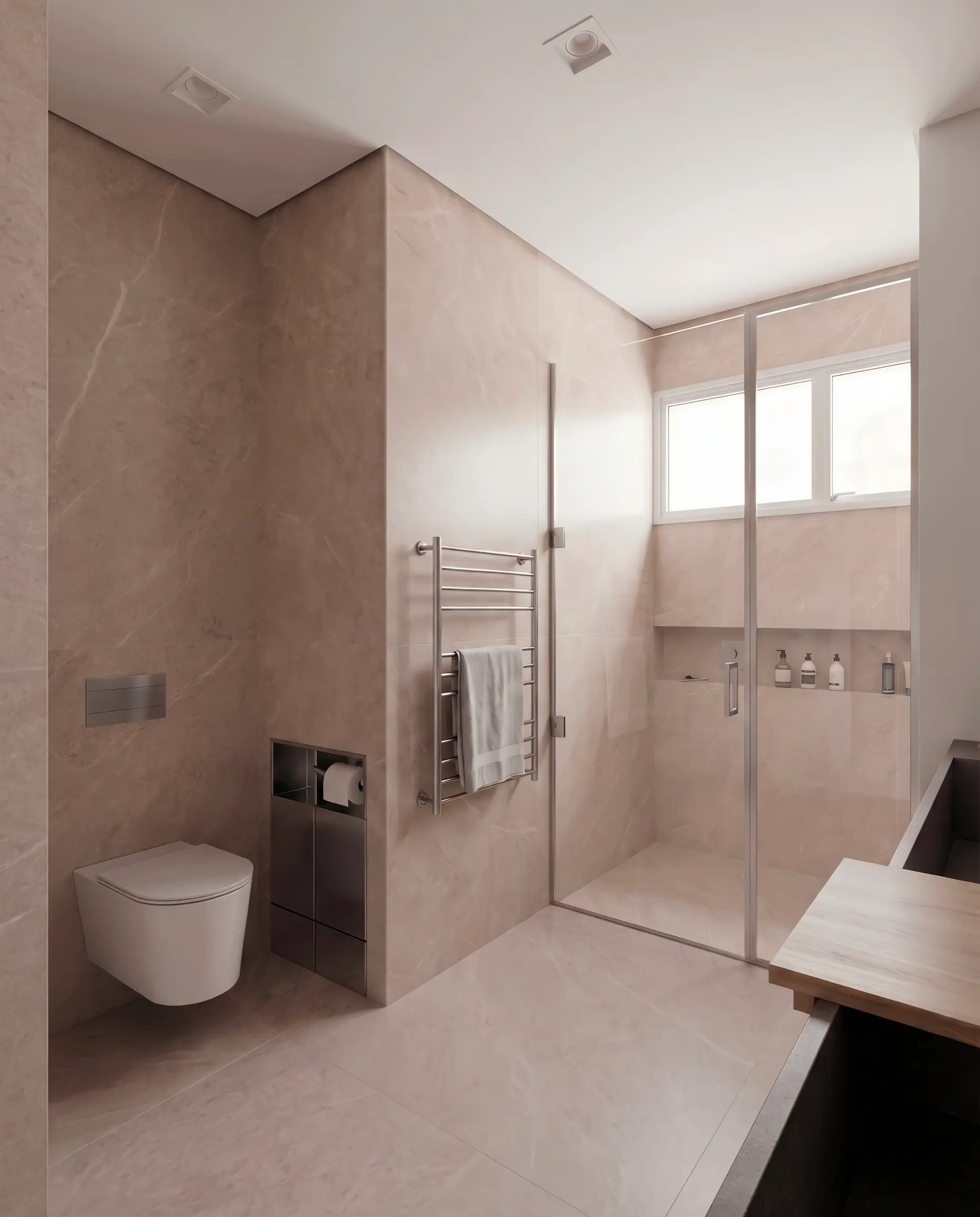
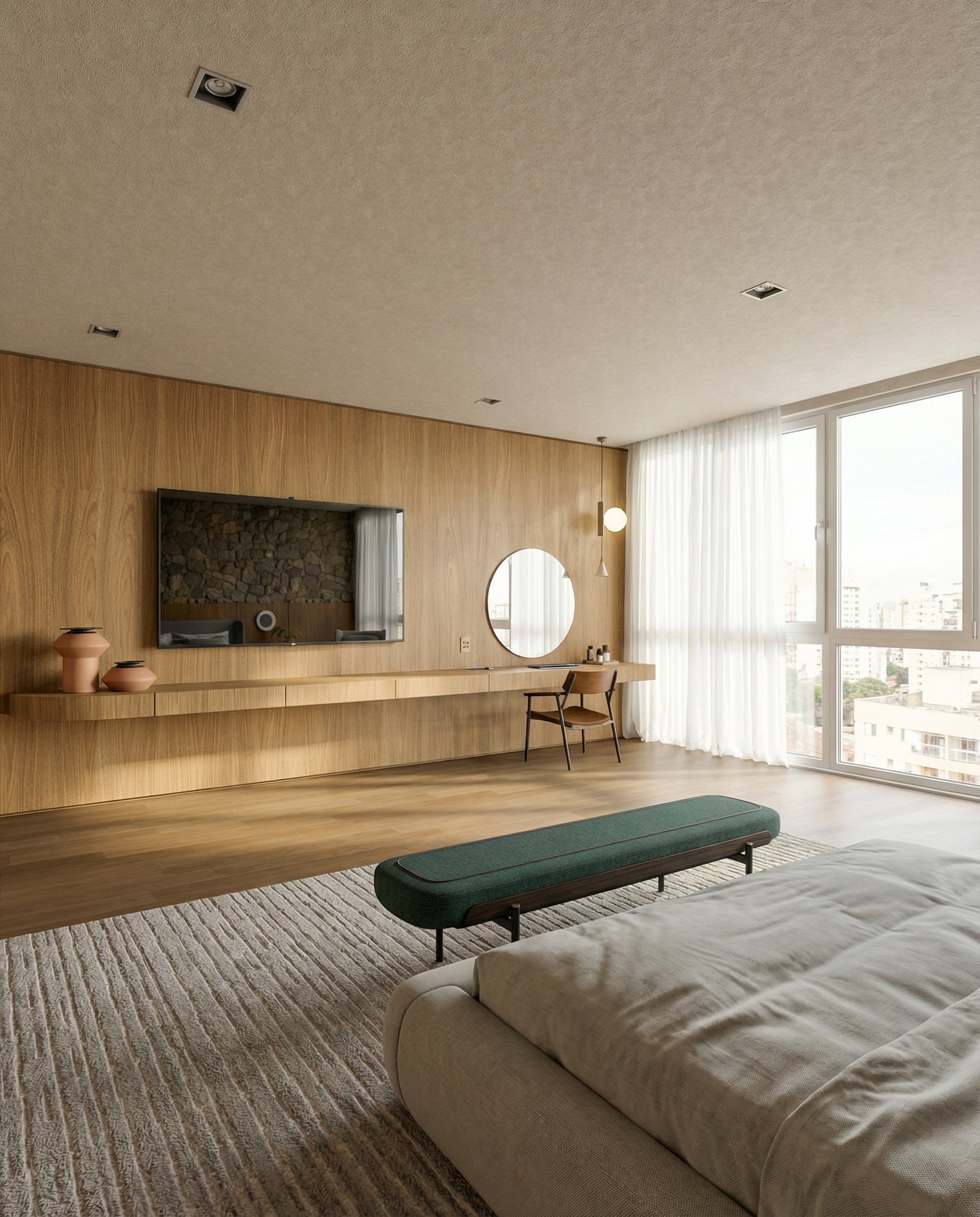
Turn Vectorworks viewports into photorealistic renders. Export a view as PNG, upload to Maquete, and get an interior or exterior render in about a minute.
How it works
From Vectorworks to photorealistic render in three steps
Export your view
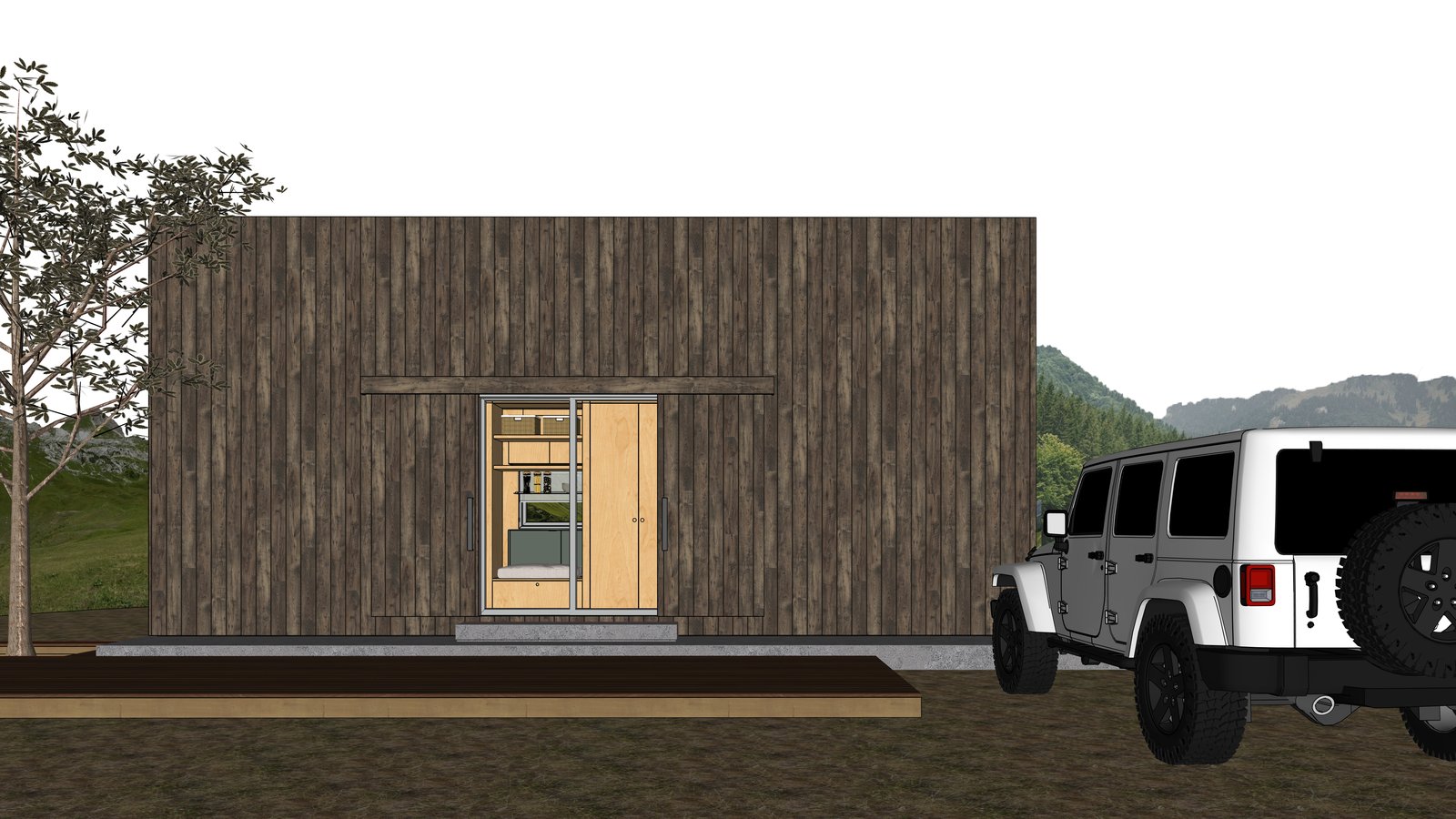
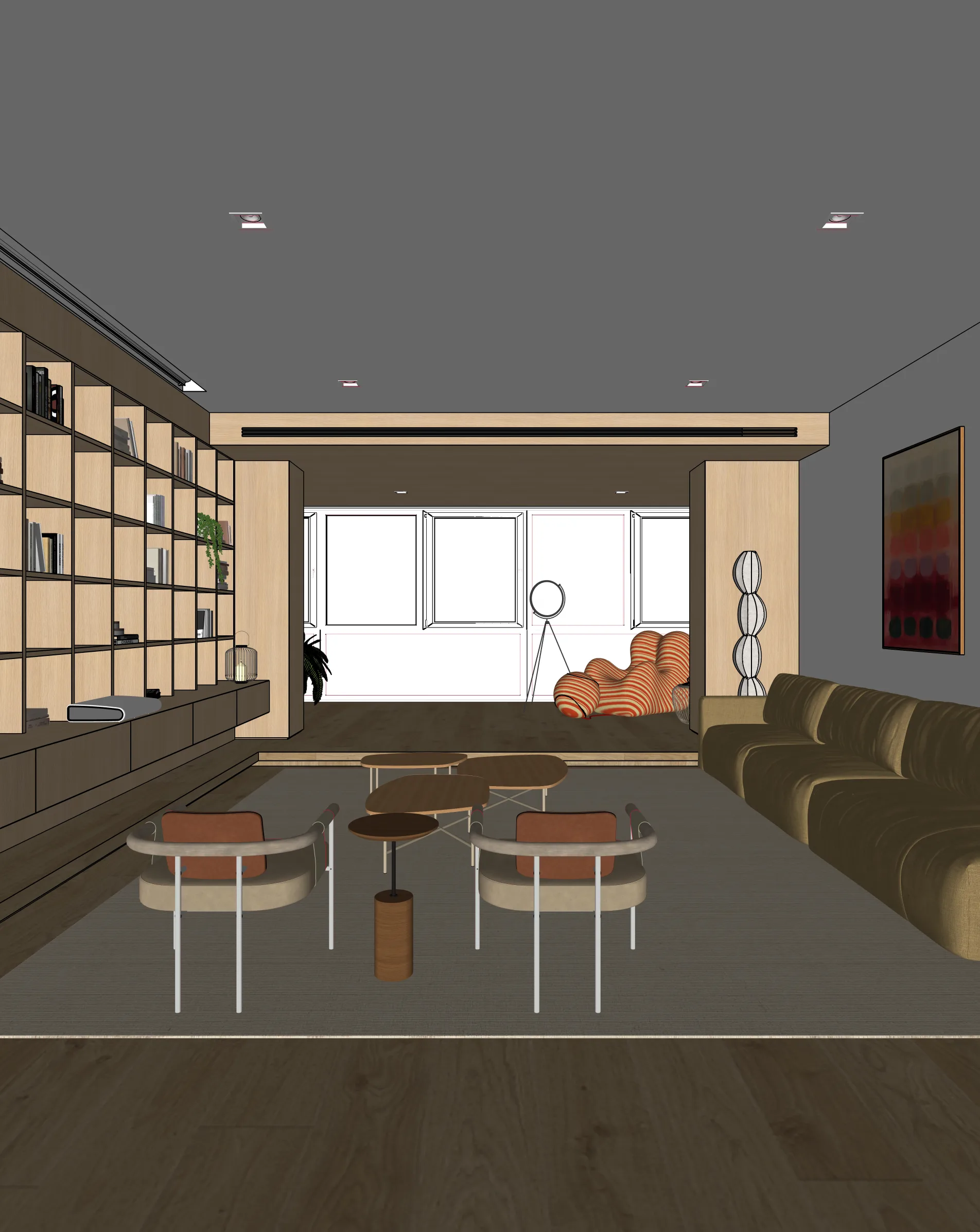
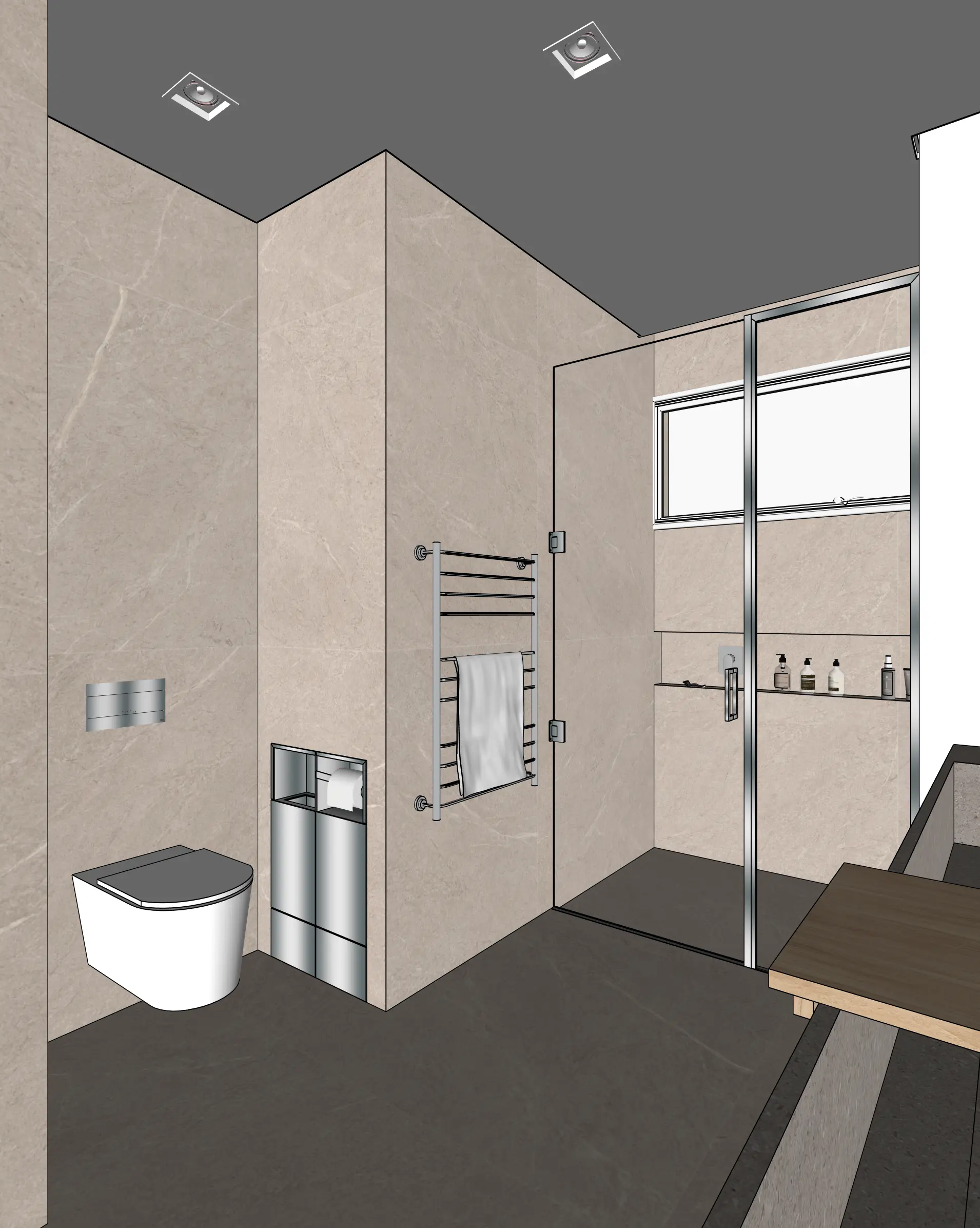
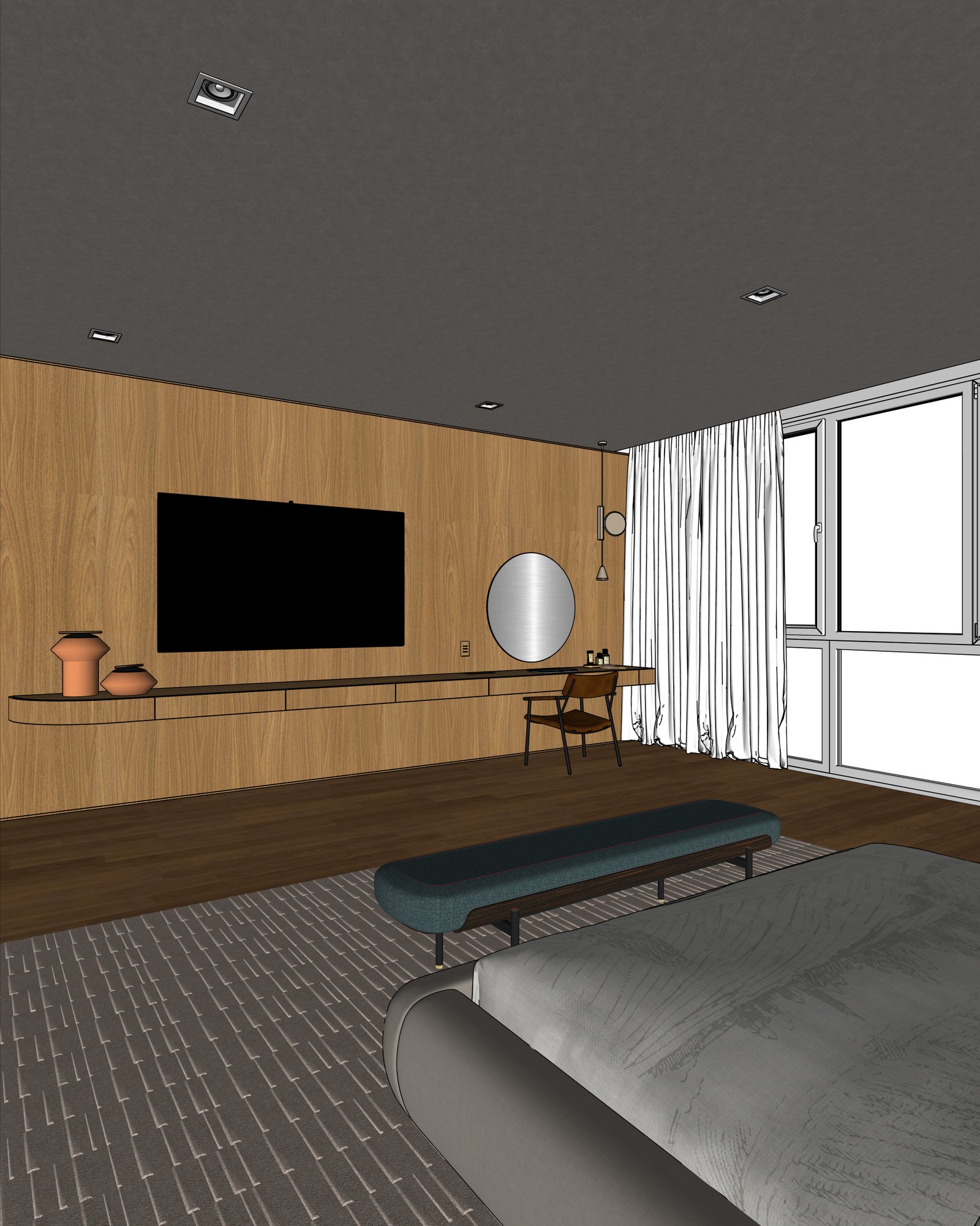
In Vectorworks, set your viewport to OpenGL or Renderworks. Use File > Export > Export Image File, save as PNG.
Upload to Maquete
Drag the image into the browser. No plugin install needed — just sign up and start.
Render in seconds
Pick lighting, materials, and time of day. Maquete returns a photorealistic render in about a minute.
Examples
What you can render
FAQ
Common questions
Do I still need Renderworks?+
Not for photoreal output. Export a basic OpenGL viewport — Maquete adds the materials, lighting, and atmosphere. Use Renderworks only if you want a specific shading style as the input.
Does Maquete work with Vectorworks Architect?+
Yes. Vectorworks Architect, Landmark, and Spotlight all export images Maquete can render from. The exported view is what matters, not the Vectorworks edition.
Will site plans and landscapes render well?+
Yes. Use Maquete's exterior guided mode for landscape and site work — control vegetation, sky, and background to match the brief.
Ready to render from Vectorworks?
Start a 7-day free trial and try Maquete on a real project.