AI Rendering for ArchiCAD
Photorealistic renders from ArchiCAD
in seconds
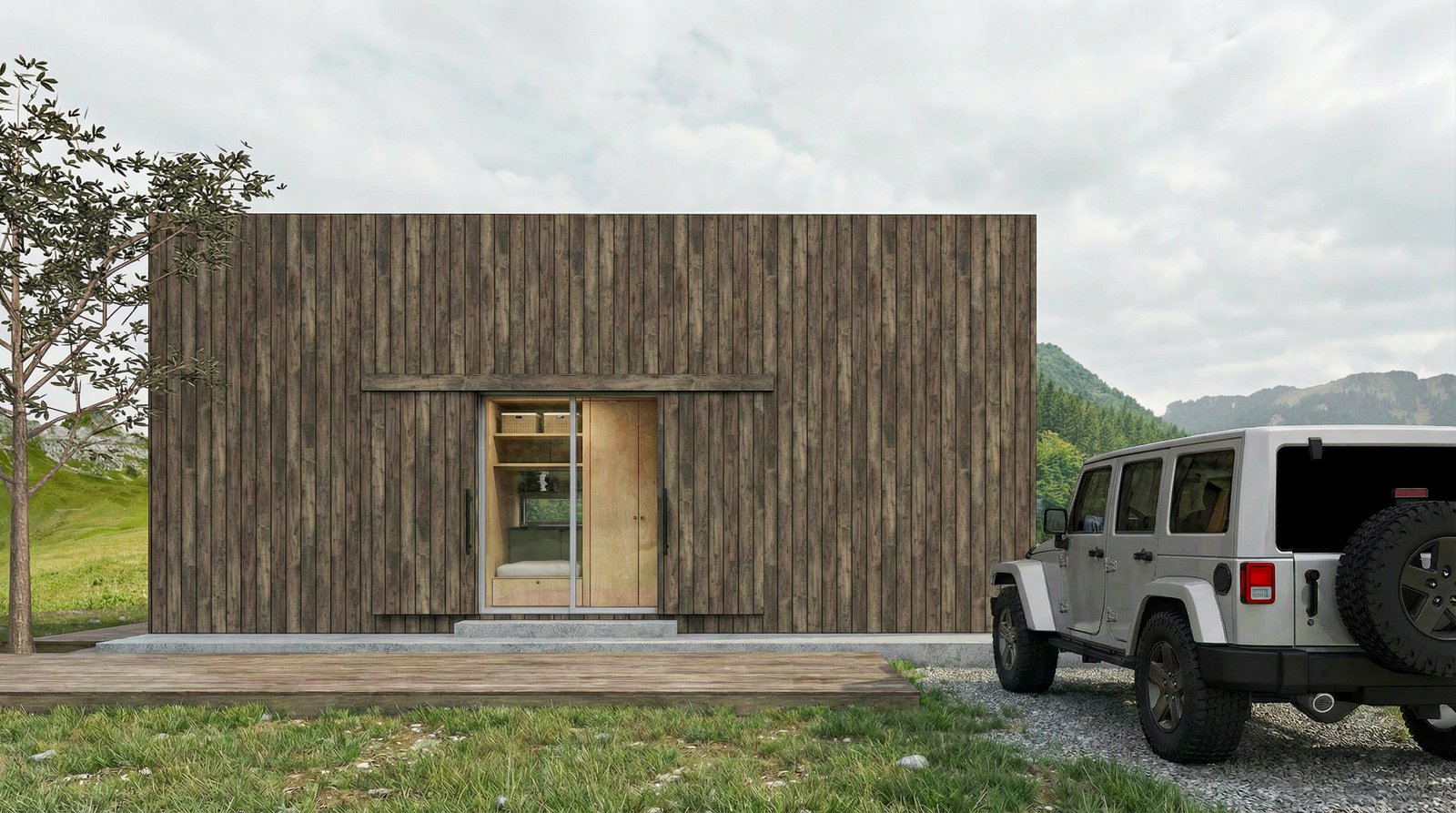
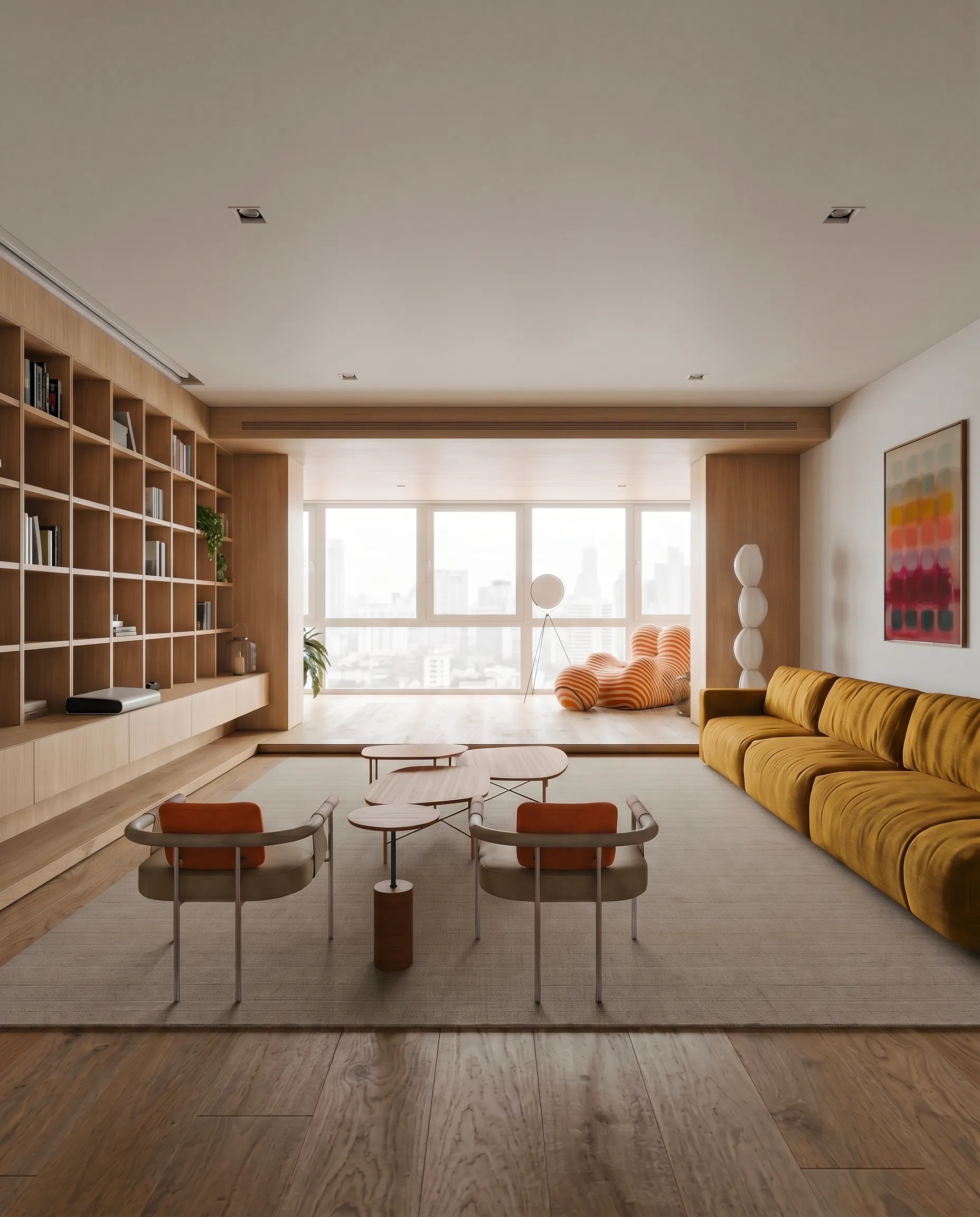
Photorealistic renders from your ArchiCAD model in seconds. Export a 3D view as PNG, upload, and get a result that keeps your BIM geometry intact.
How it works
From ArchiCAD to photorealistic render in three steps
Export your view
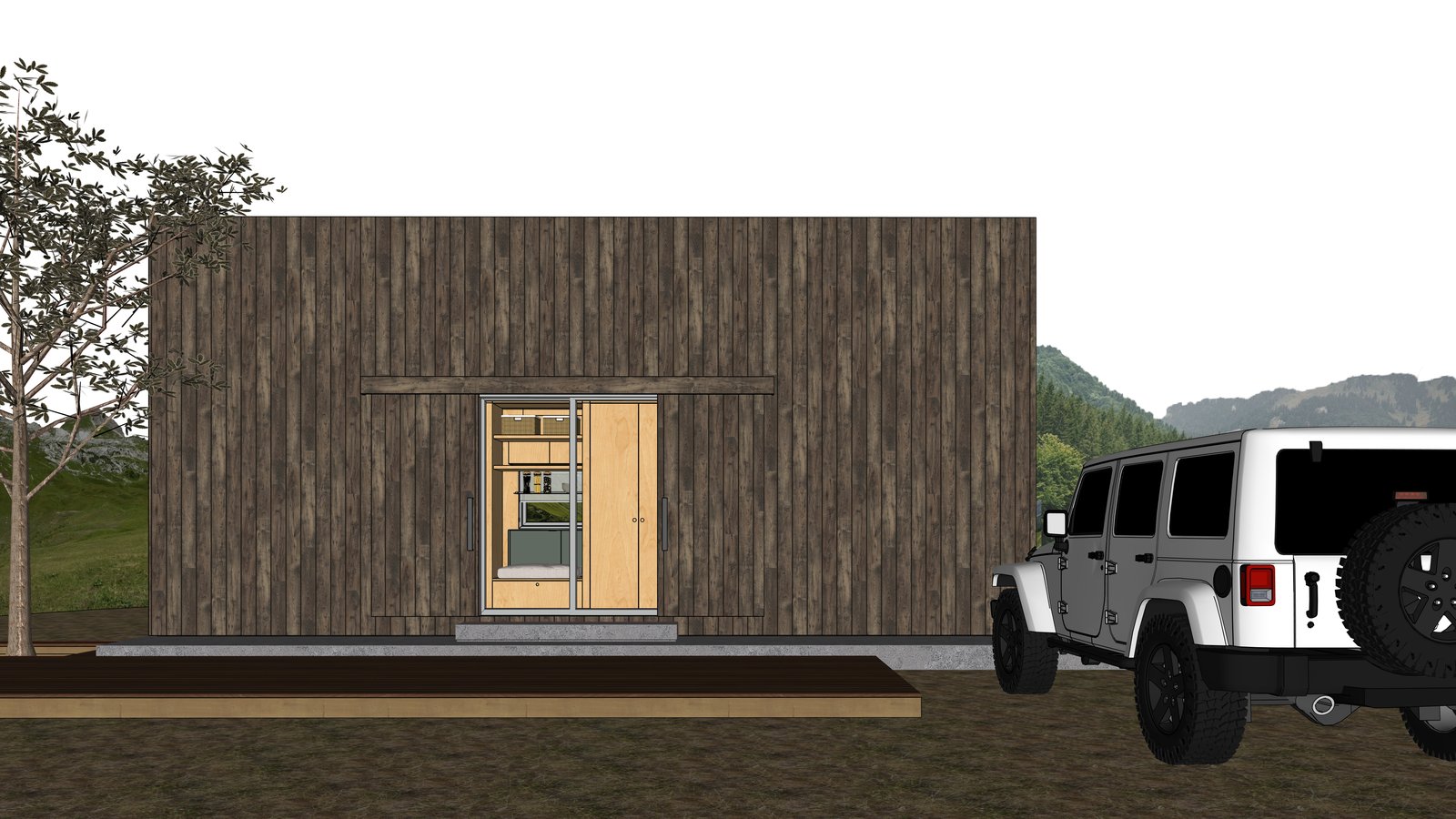
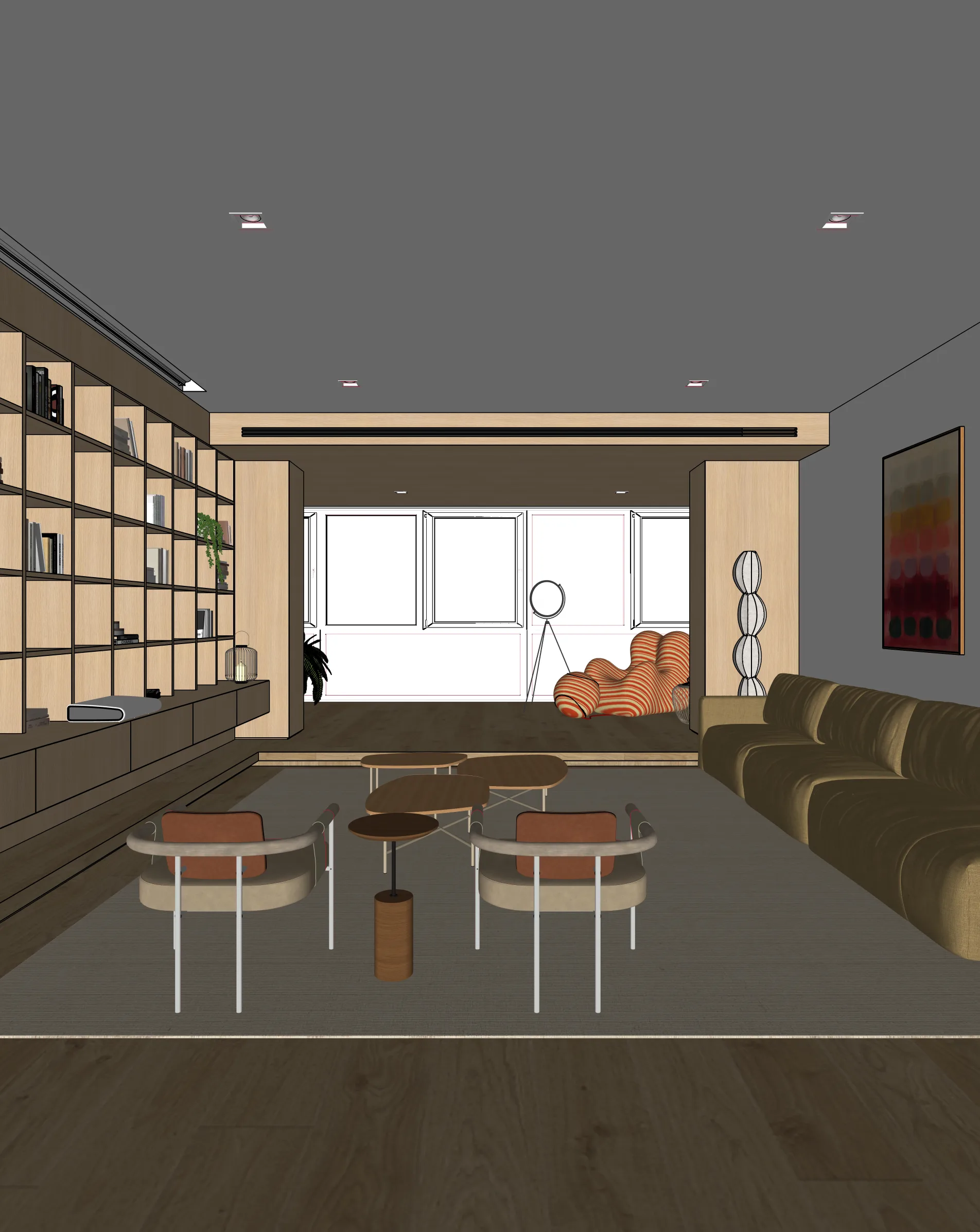
In ArchiCAD, set your 3D view or perspective. Use Document > Creative Imaging > Photorender Settings, or File > Save As to export a PNG or JPG.
Upload to Maquete
Drag the image into the browser. No plugin install needed — just sign up and start.
Render in seconds
Pick lighting, materials, and time of day. Maquete returns a photorealistic render in about a minute.
Examples
What you can render
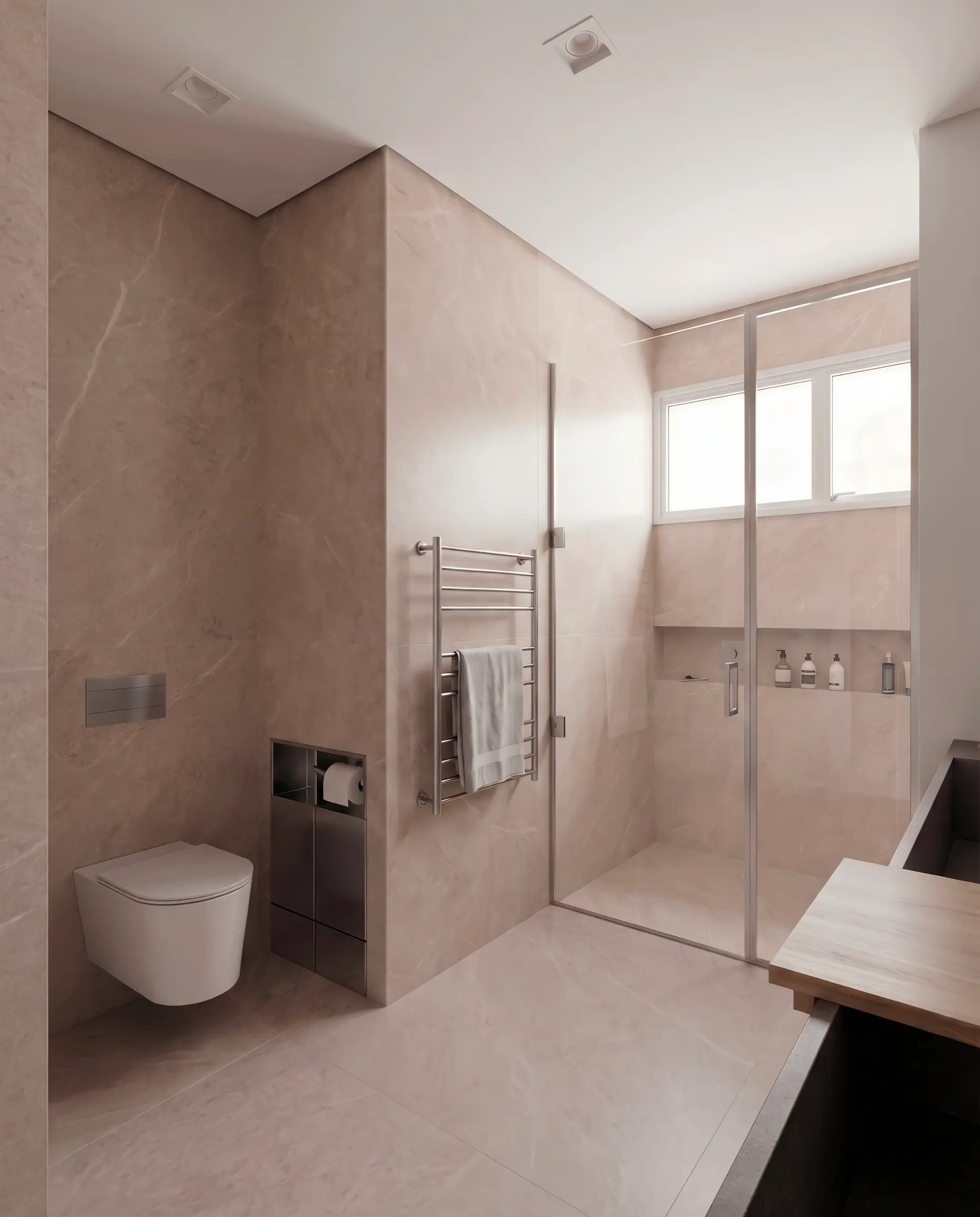
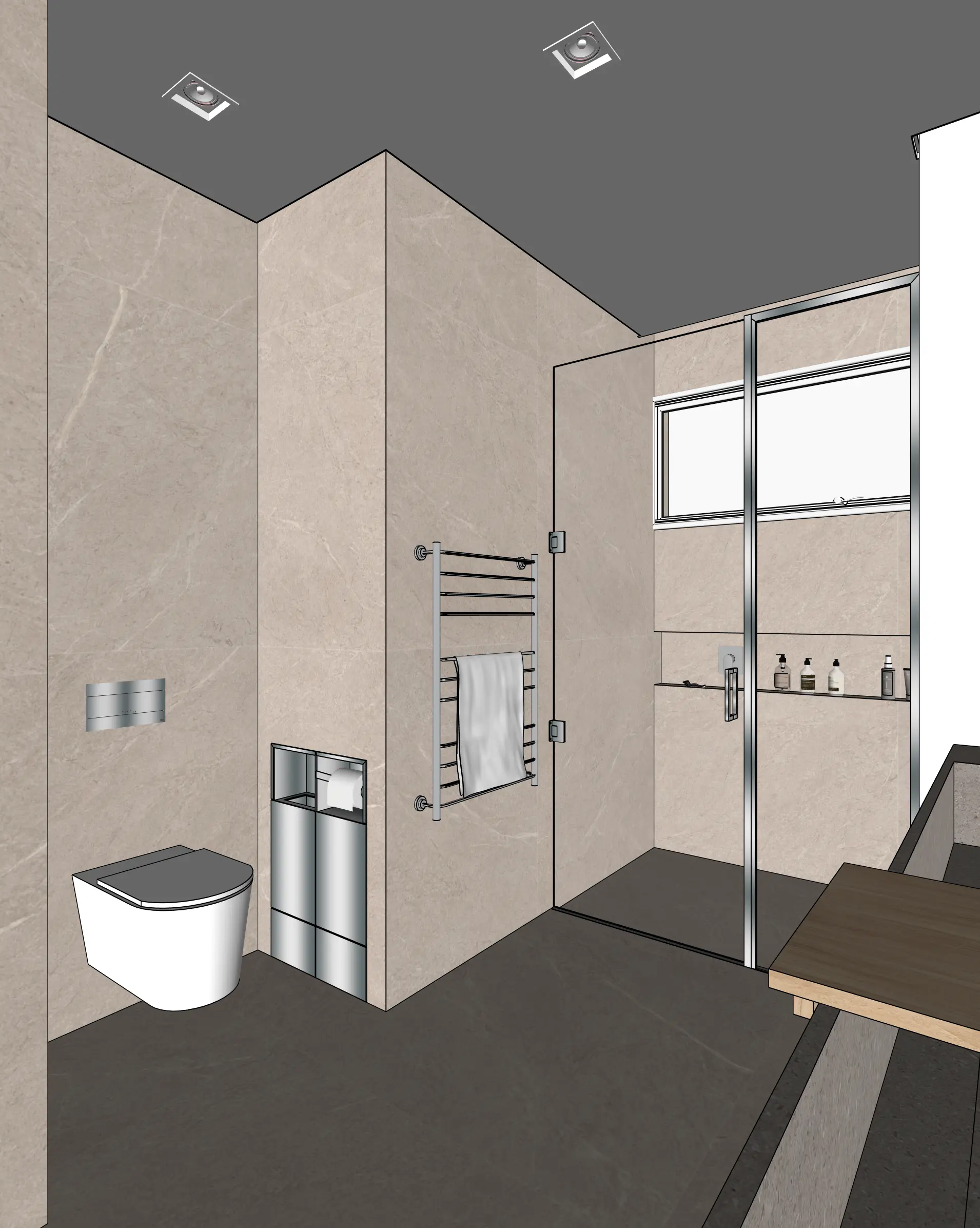
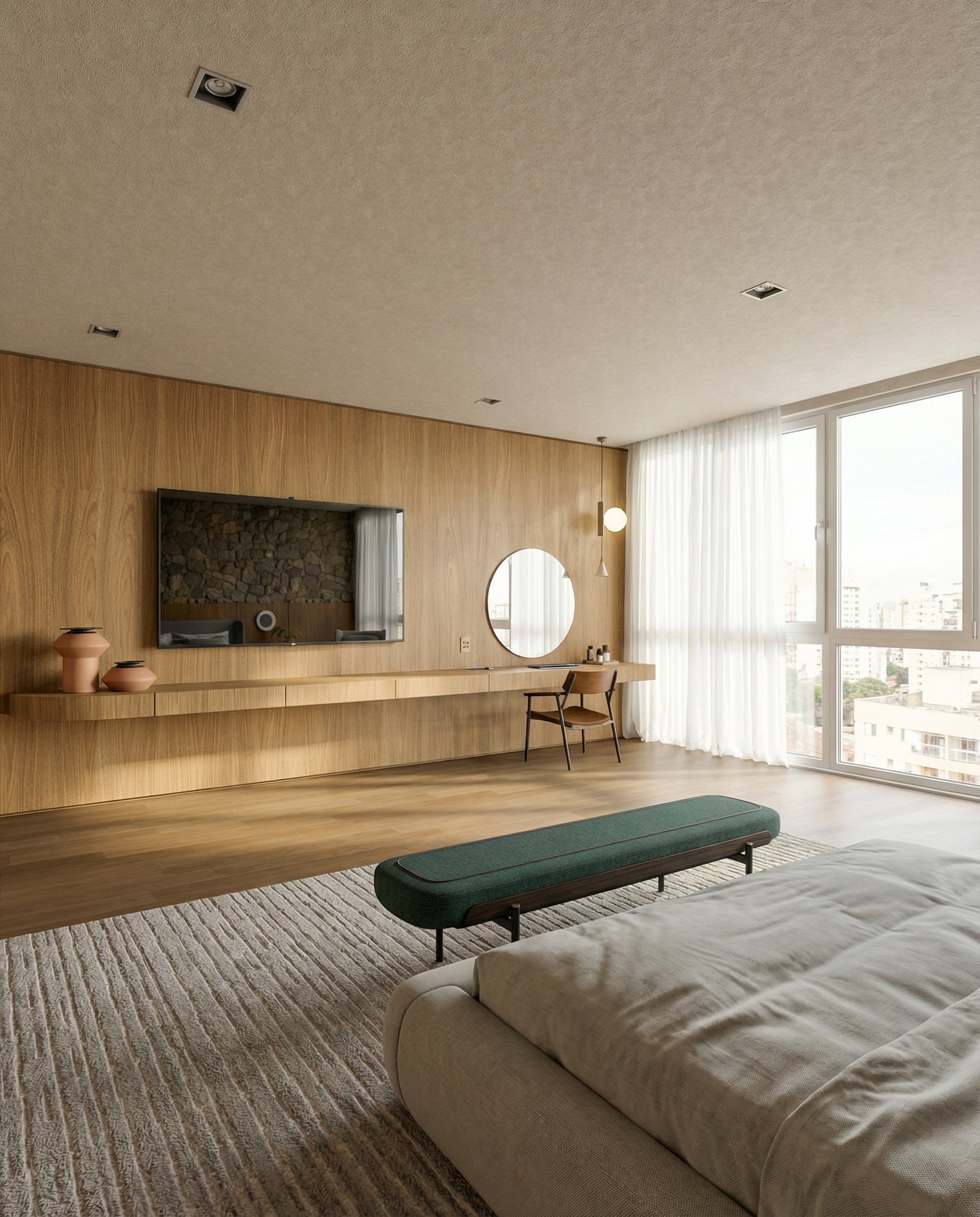
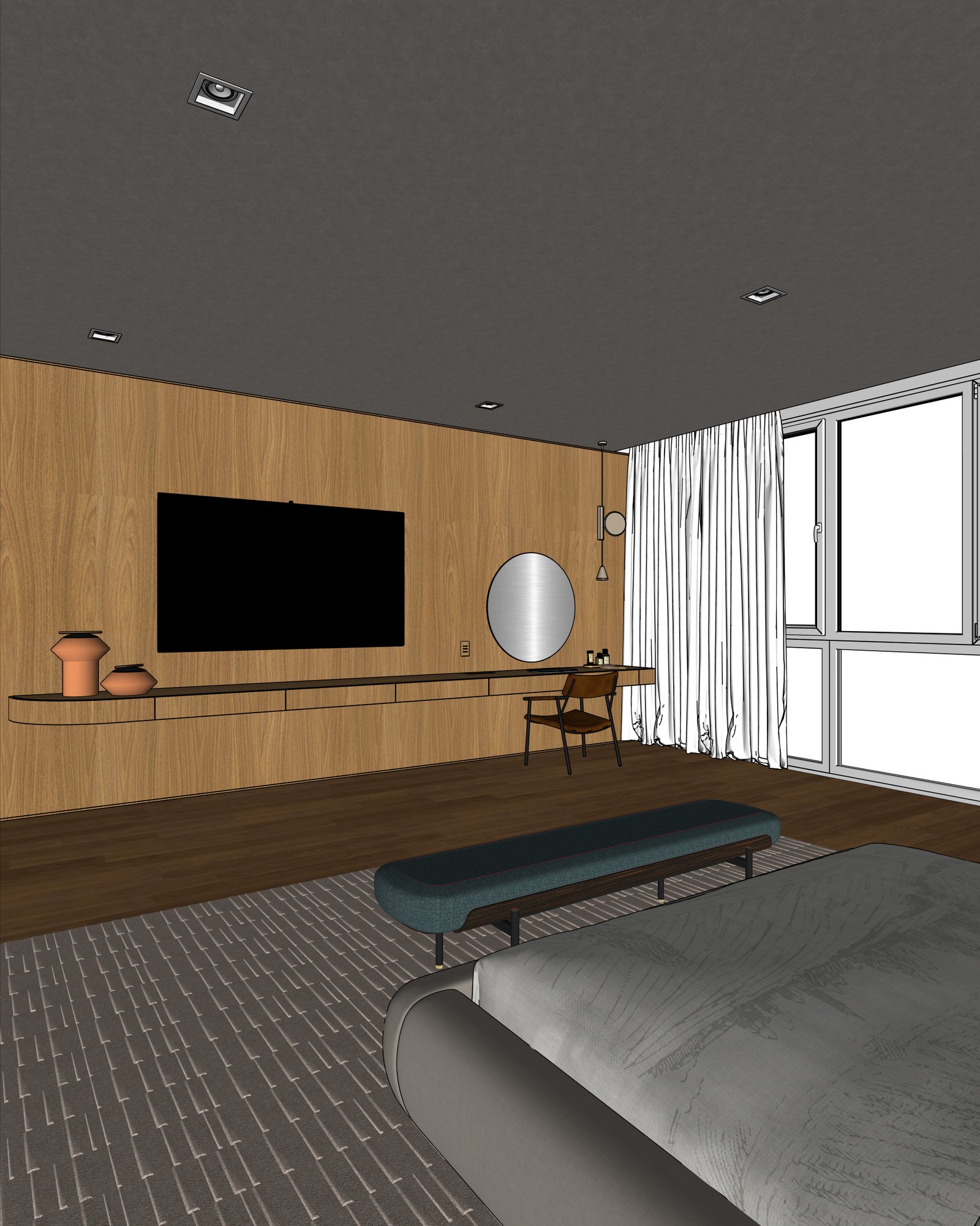
FAQ
Common questions
Do I still need CineRender?+
No. Maquete replaces the CineRender step entirely. Export a basic 3D view — Maquete adds the materials, lighting, and atmosphere.
Does Maquete work with ArchiCAD's BIM data?+
Maquete uses the exported image rather than the BIM model directly, so it doesn't need IFC or model data. Your geometry transfers through the image accurately.
Can I render different design options quickly?+
Yes — that's where AI rendering wins. Render the same view with different materials, lighting, and times of day in seconds rather than waiting hours for each variant.
Ready to render from ArchiCAD?
Start a 7-day free trial and try Maquete on a real project.