AI Rendering for Blender
Photorealistic renders from Blender
in seconds
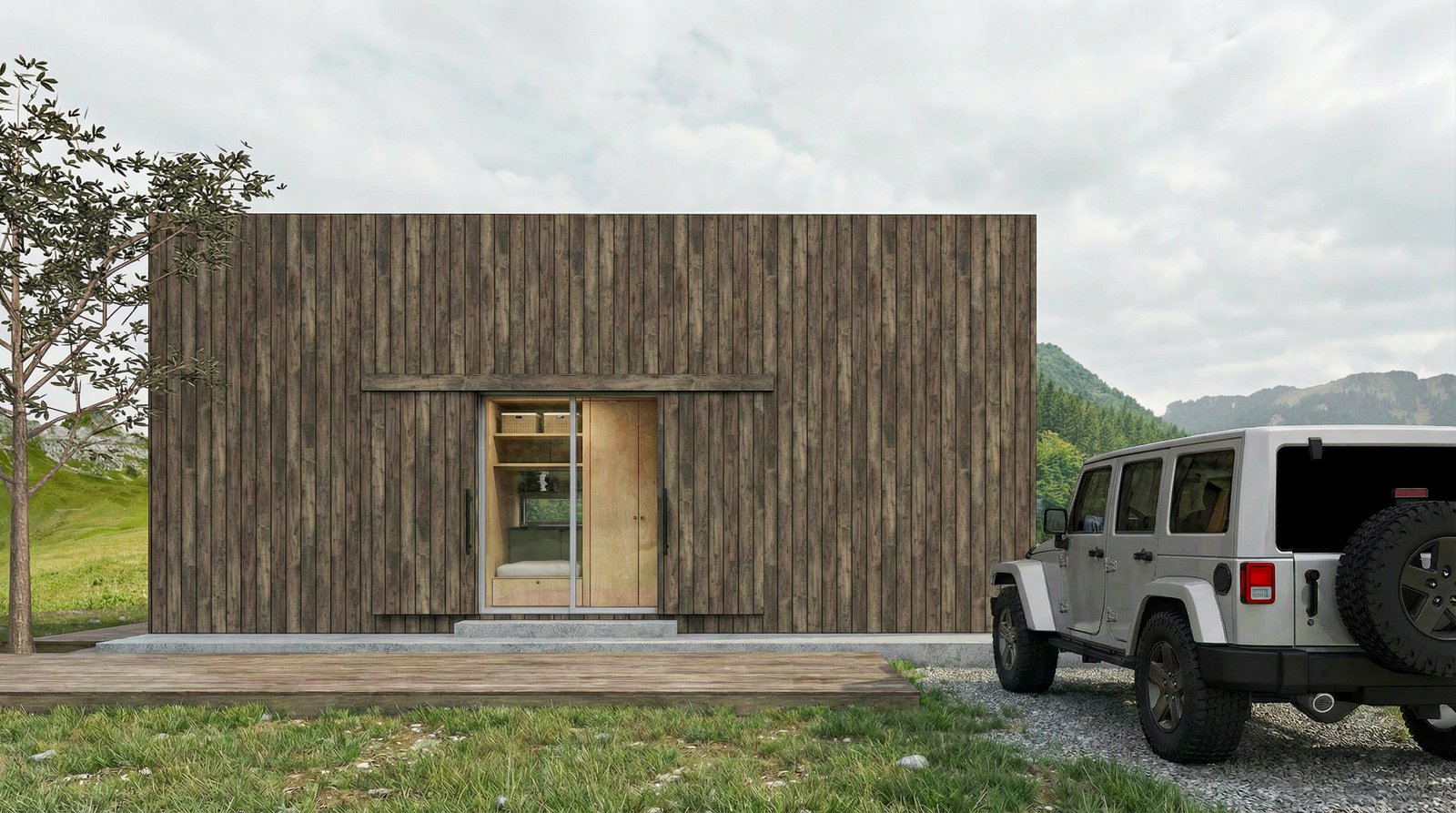
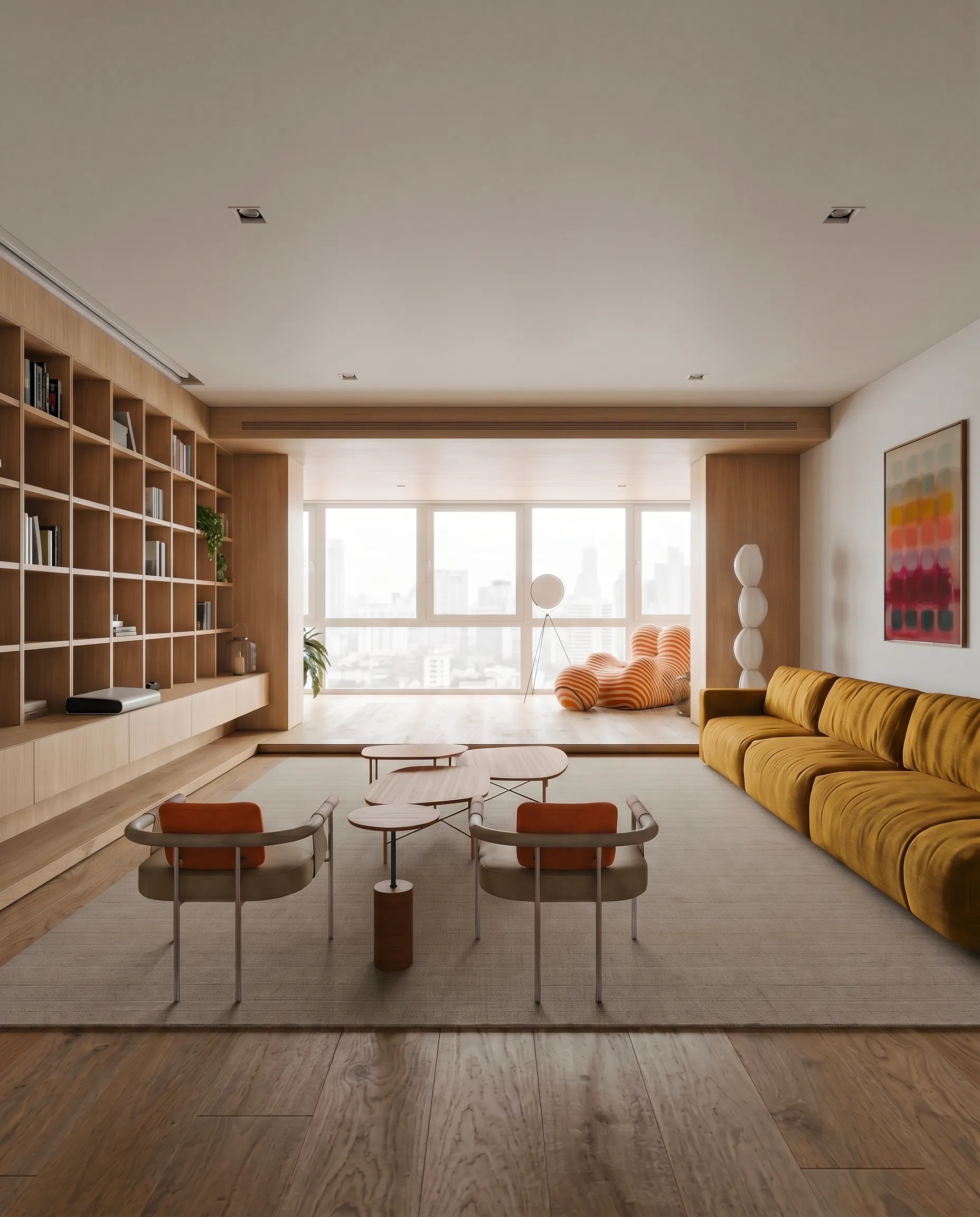
Skip the Cycles render times. Export a Blender viewport, upload to Maquete, and get a photorealistic interior or exterior render in about a minute.
How it works
From Blender to photorealistic render in three steps
Export your view
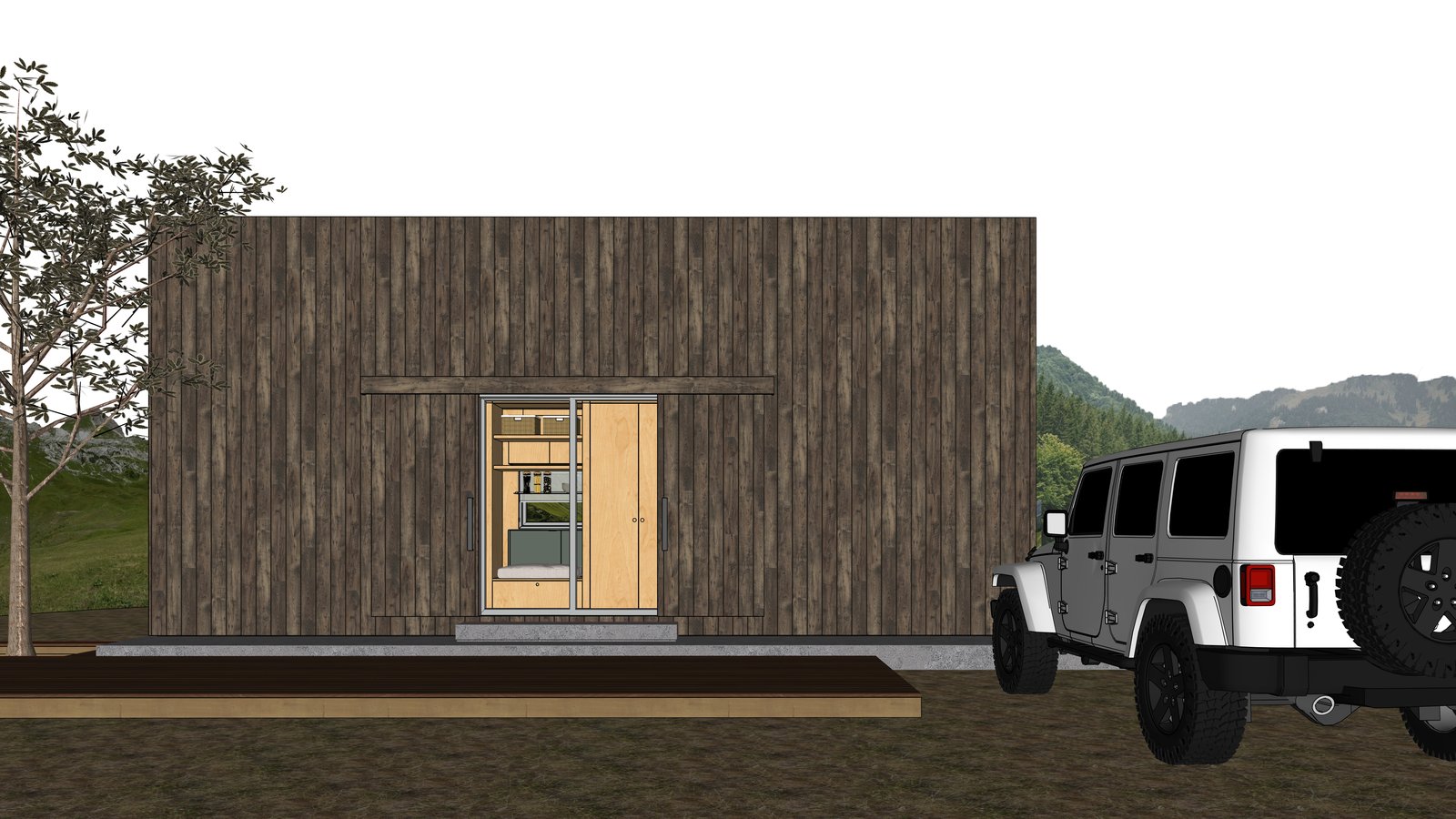
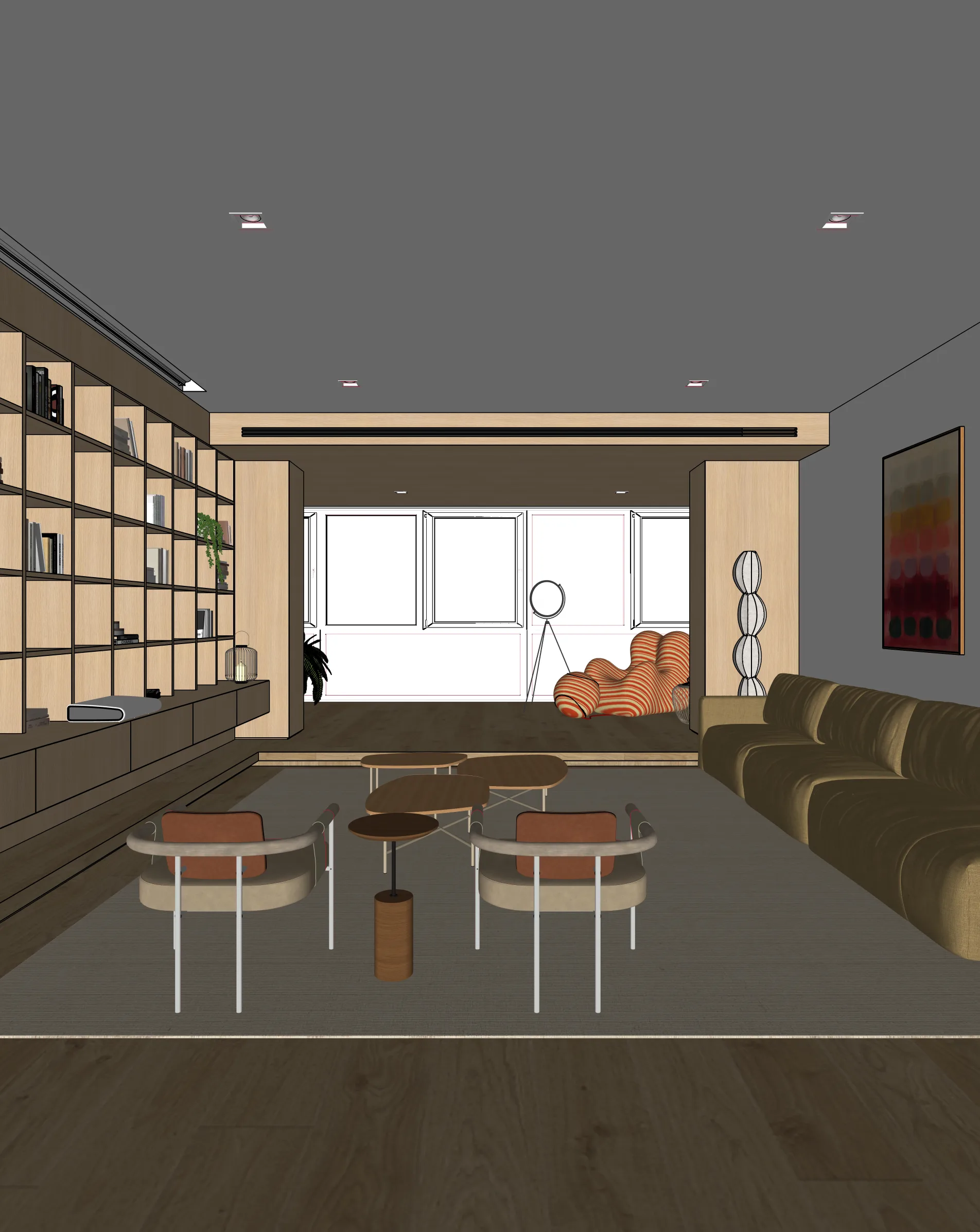
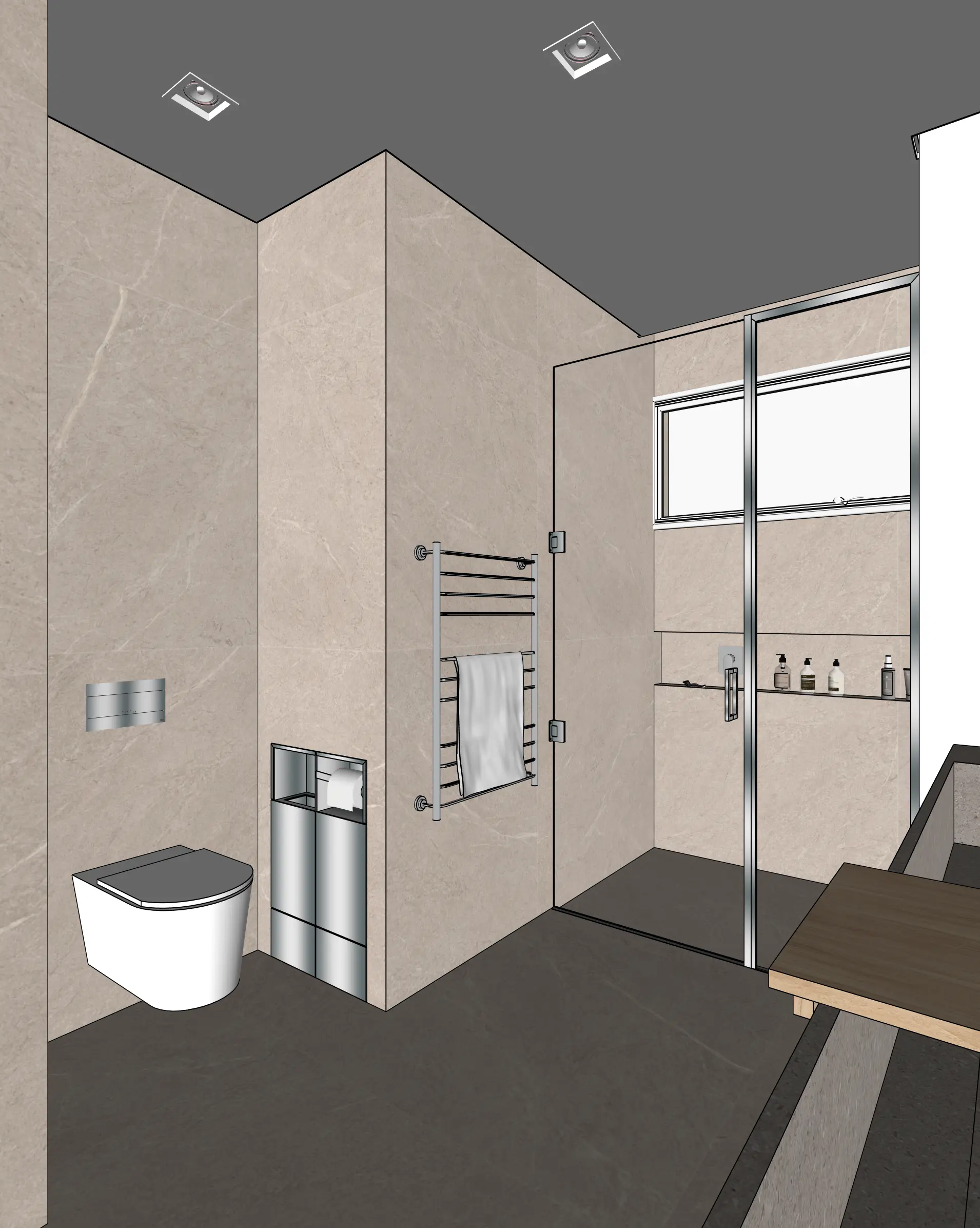
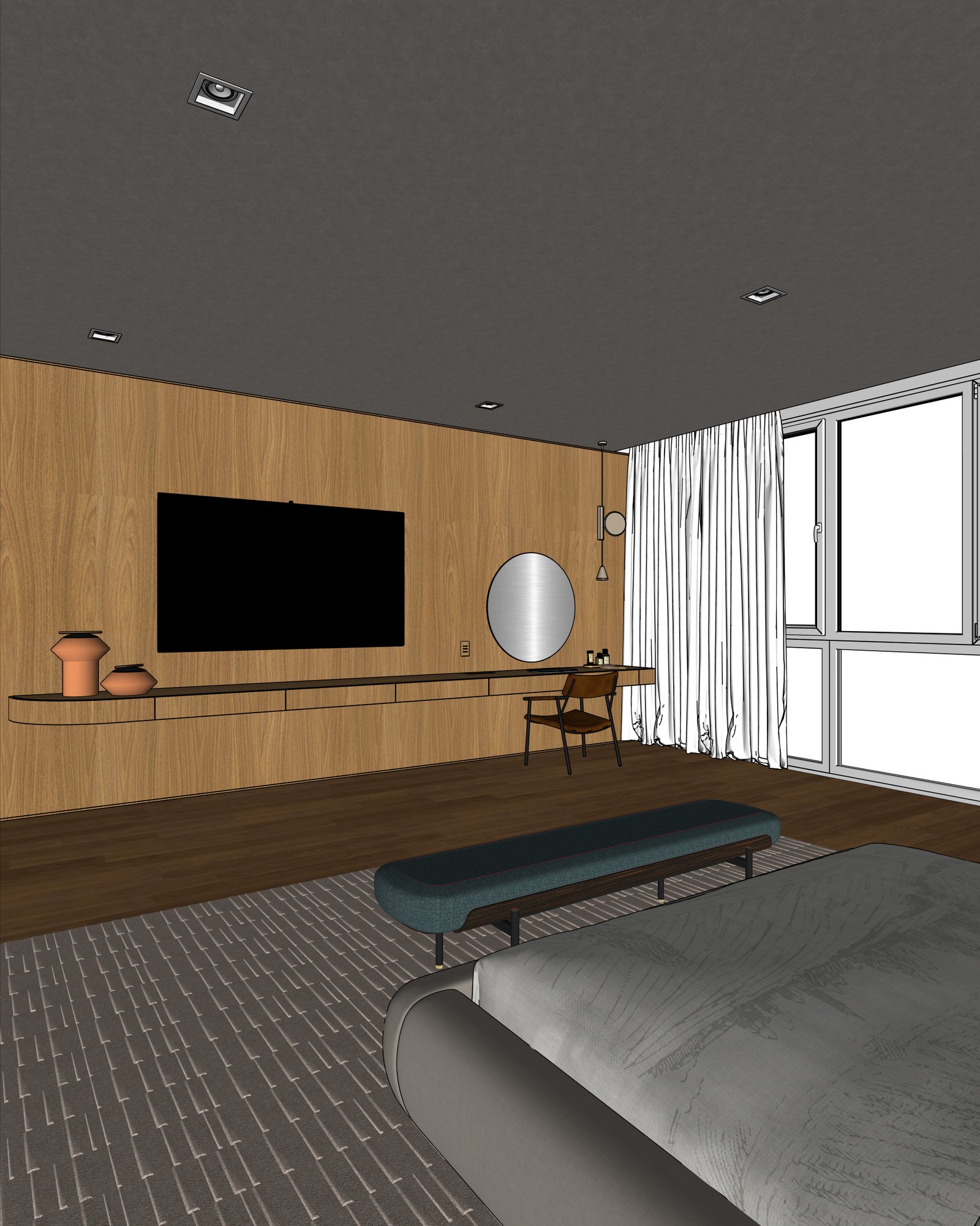
In Blender, frame your shot in the viewport. Use View > Viewport Render Image, or render a low-sample Eevee preview and save as PNG.
Upload to Maquete
Drag the image into the browser. No plugin install needed — just sign up and start.
Render in seconds
Pick lighting, materials, and time of day. Maquete returns a photorealistic render in about a minute.
Examples
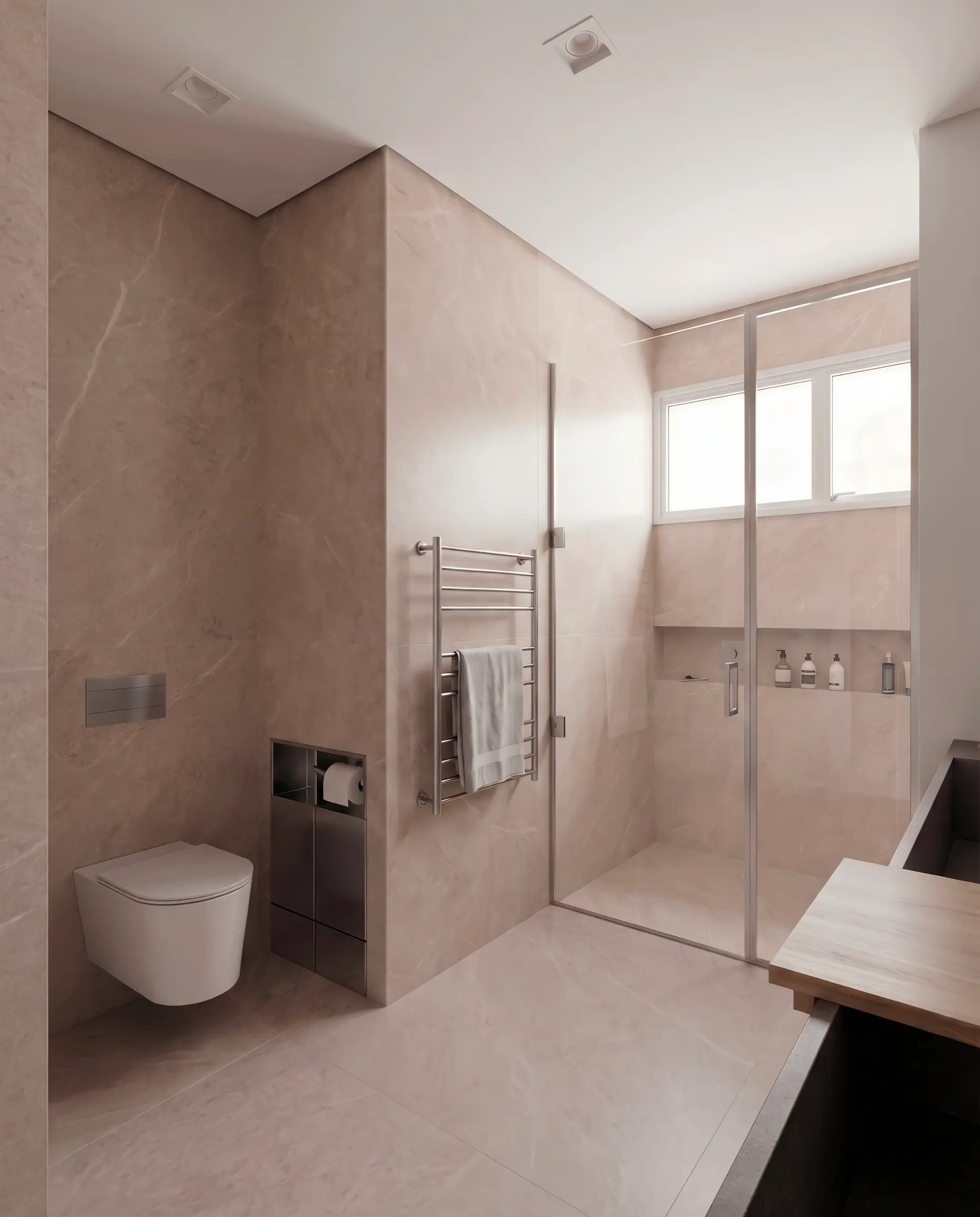
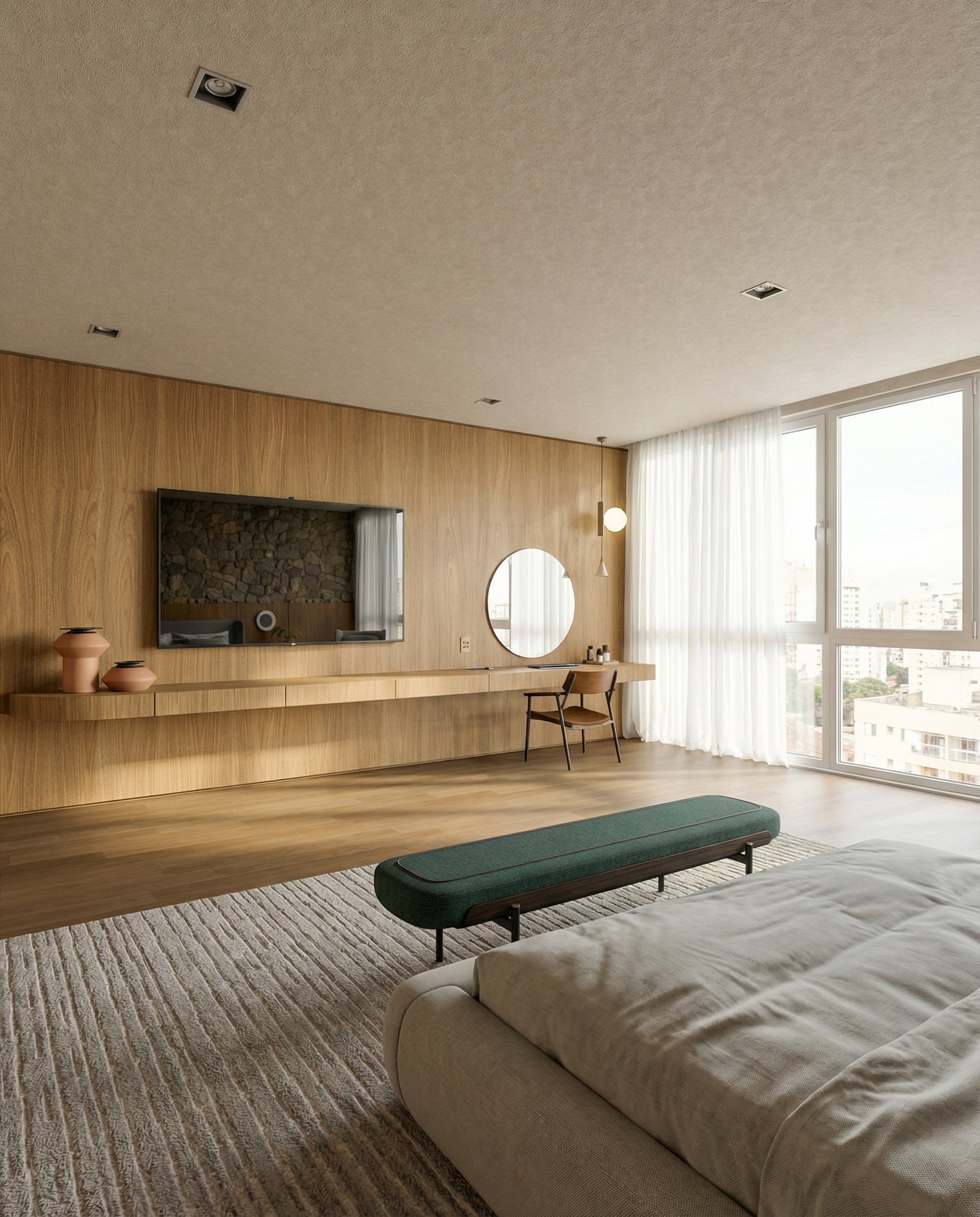
What you can render
FAQ
Common questions
Why not just use Cycles or Eevee?+
You can, but they take minutes per frame for photoreal results and require careful material setup. Maquete returns a photoreal render in seconds without needing PBR shaders or HDRI lighting setup.
Does Maquete work with low-poly Blender models?+
Yes. The viewport shading mode you use doesn't matter much — flat, solid, or material preview all give Maquete enough structure to work from.
Can I render Blender exteriors and landscapes?+
Yes. Use Maquete's exterior guided mode for facade and landscape work — control sky conditions, vegetation, and background separately.
Ready to render from Blender?
Start a 7-day free trial and try Maquete on a real project.